To embed Producers Market StoryBird™ product profiles on your website there are 4 embed solutions, referenced by unique source URLs. If embeds are enabled for your products you can chose from:
- Button Embed – Renders a branded button design to link to your Journey – (
/embed/button/unique-story-id) - Map Embed – Displays a map of your products supply chain journey – (
/embed/map/unique-story-id?blockchain-id=unique-blockchain-batch-id) - Steps Embed – Displays the event lists with images and text descriptions of your supply chain – (
/embed/steps/unique-story-id?blockchain-id=unique-blockchain-batch-id) - Full Embed – Displays a dynamic map that scrolls and animates in combination with your events list with and text descriptions of your supply chain (
/embed/full/unique-story-id?blockchain-id=unique-blockchain-batch-id) - Full Swap Embed – Like Full Embed, but map is left, supply chain is right. (
/embed/full-swap/unique-story-id?blockchain-id=unique-blockchain-batch-id)
The unique-story-id is your unique product profile url, while the unique-blockchain-batch-id is an optional parameter only applicable if your story supports traceability via one of our blockchain partners.
The Button embed module allows you to link to your StoryBird using our custom button design and styles. The button can be positioned anywhere on your site and when used will link to your StoryBird product profile.
The Map & Steps embed modules allow you to display the supply chain journey of your product on your website, and can be combined and displayed alongside/or in combination with each other. When you add map and steps on the same page, they do not interact (eg the map does not update when a step is selected). To use this feature, use the full embed module.
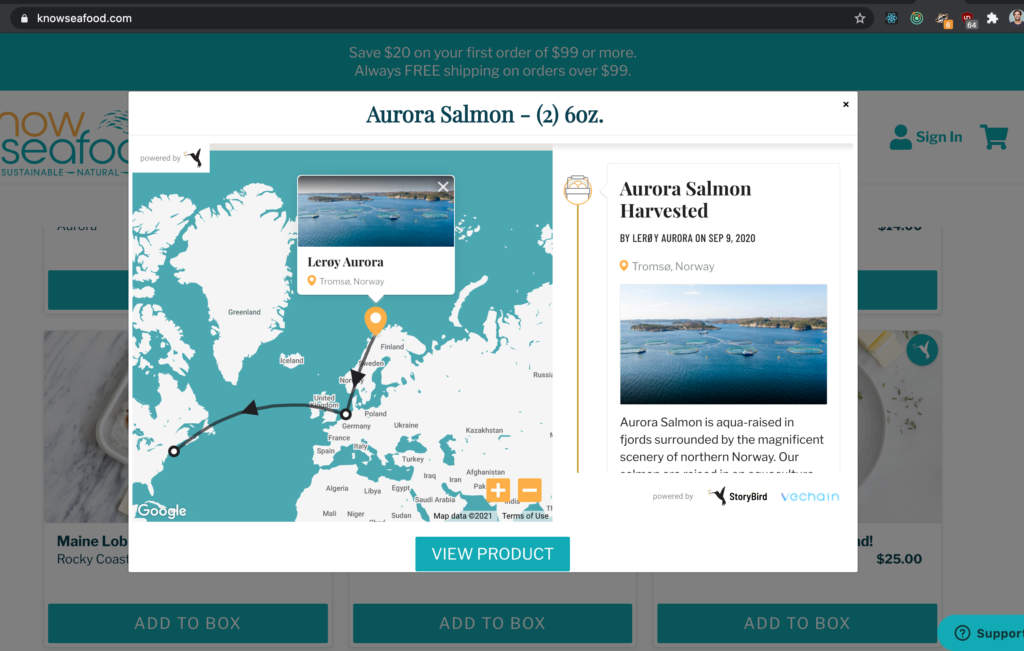
The Full embed module allows you to link your StoryBird as a interactive component that allows the client to select a supply-step on the map and scrolling to the step in the journey descriptions. This embed gives your clients the best StoryBird experience but requires the most space.
Need to allow embeds for your website? Reach out to our engineering team on dev@producersmarket.com and share the URL of your website or staging environment to get white-listed.
The current technical implementation is done via the iframe element and can be copy-pasted into any WYSIWYG editor, CMS or even manually added to your website source code. There is also an additional Shopify implementation example in .liquid syntax. If you currently don’t work with our blockchain partners safely ignore this optional parameter and only use /embed/<module type>/unique-story-id
The embed documentation is split into the following sections (click to jump to the right chapter):
- Button Module Example
- Map Module Example
- Steps Module Example
- Full Embed Example
- Full Swap Embed Example
- Responsive CSS Snippet (optional)
- Shopify Integration
- More example links
Button Module Example
A StoryBird button module embed is compiled by the following syntax:
<iframe src="https://storybird.io/embed/button/eco-fashion-corp-yesand-rosalie-tee" scrolling="no" width="202" height="62" width="202" height="70" frameborder="0"></iframe>
Please note the button embed below linking to the “YesAnd Rosalie Tee” story which is rendering the example code above.
Map Module Example
A StoryBird map module embed is compiled by the following syntax:
<div style="--aspect-ratio: 16/9; min-height: 340px; max-width: 500px;">
<iframe src="https://storybird.io/embed/map/eco-fashion-corp-yesand-rosalie-tee" width="100%" height="340" frameborder="0"></iframe>
</div>
The div element wrapping the iframe is used to provide a responsive iframe (an element which scales correctly for multiple device resolutions). Please note the embed below for the “YesAnd Rosalie Tee” story example which is rendering the code above.
Steps Module Example
A StoryBird steps module embed is compiled by the following syntax:
<div style="--aspect-ratio: 16/9; min-height: 500px; max-width: 400px;">
<iframe src="https://storybird.io/embed/steps/eco-fashion-corp-yesand-rosalie-tee" width="100%" height="500" frameborder="0"></iframe>
</div>
As above the div element wrapping the iframe is used to provide a responsive iframe (an element which scales correctly for multiple device resolutions). Please note the steps embed below for the “YesAnd Rosalie Tee” story example which is rendering the code above.
Full Embed Module Example
A StoryBird full embed module is compiled by the following syntax:
<div style="--aspect-ratio: 16/9; min-height: 500px; width: 100%">
<iframe src="https://storybird.io/embed/full/eco-fashion-corp-yesand-rosalie-tee" width="100%" height="500" frameborder="0" scrolling="no"></iframe>
</div>
As above the div element wrapping the iframe is used to provide a responsive iframe (an element which scales correctly for multiple device resolutions). Please note the full embed below for the “YesAnd Rosalie Tee” story example which is rendering the code above.
Full Embed-Swap Module Example
A StoryBird full-swap embed module is compiled by the following syntax:
<div style="--aspect-ratio: 16/9; min-height: 500px; width: 100%">
<iframe src="https://storybird.io/embed/full-swap/eco-fashion-corp-yesand-rosalie-tee" width="100%" height="500" frameborder="0" scrolling="no"></iframe>
</div>
The full-swap element is identical to the full embed, however it inverts the timeline and the map position (timeline on the right, map to the left on desktop). As above the div element wrapping the iframe is used to provide a responsive iframe (an element which scales correctly for multiple device resolutions). Please note the full embed below for the “YesAnd Rosalie Tee” story example which is rendering the code above.
Responsive CSS Snippet (optional)
To support our iframe embed to scale correctly we recommend adding this CSS snippet to your source code to allow for responsive iframes and to allow them to scale with various device screen sizes:
[style*="--aspect-ratio"]> :first-child {
	width: 100%;
}

[style*="--aspect-ratio"]>img {
	height: auto;
}

@supports (--custom:property) {
	[style*="--aspect-ratio"] {
		position: relative;
	}

	[style*="--aspect-ratio"]::before {
		content: "";
		display: block;
		padding-bottom: calc(100% / (var(--aspect-ratio)));
	}

	[style*="--aspect-ratio"]> :first-child {
		position: absolute;
		top: 0;
		left: 0;
		height: 100%;
	}
}
Shopify Integration Example
To display StoryBird modules in iframe embeds on a Shopify site with Liquid templates you need to follow these instructions.
- Copy
storybird-embed.liquidinto your snippets directory. - Copy
custom.cssfrom the link into your assets directory and link it in thetheme.liquidfile to support responsive iframes:<link rel="stylesheet" href="{{ 'custom.css' | asset_url }}"> - Add a div container with a unique
idin your template or in the contents of your page (Definemin-heightas needed for your implementation):<div id="storybird-embed-steps" style="--aspect-ratio: 16/9; min-height: 240px;"></div> - Add this to your template for each embed (for each embed you need a unique
containerId):{%assign containerId = 'storybird-embed-steps'%}
{%assign partToEmbed = 'steps'%}
{%assign storybirdStory = 'unique-story-id'%}
{%assign blockchainUrlParameter = 'vid'%}
{%include 'storybird-embed' with id:containerId, part:partToEmbed, story:storybirdStory, urlParam:blockchainUrlParameter%}
For a detailed example see example.liquid. For an implementation detail on how to use multiple embeds on the same page see example-multiple-embeds.liquid.
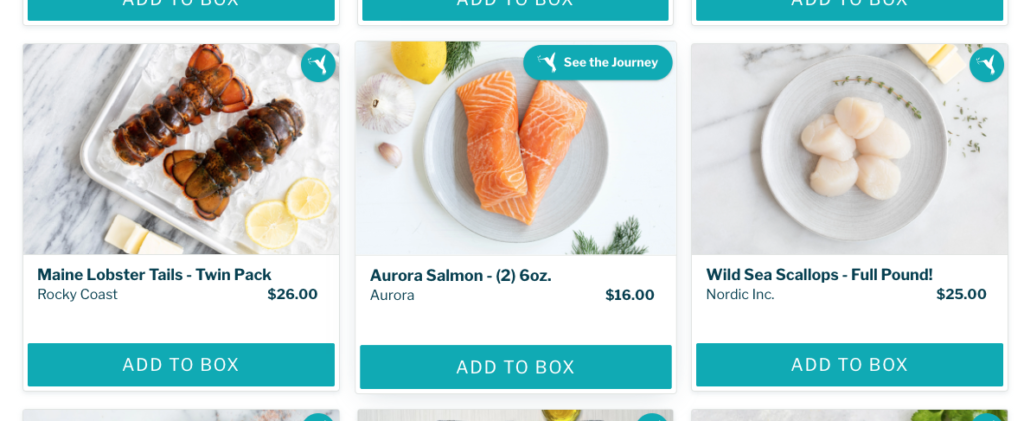
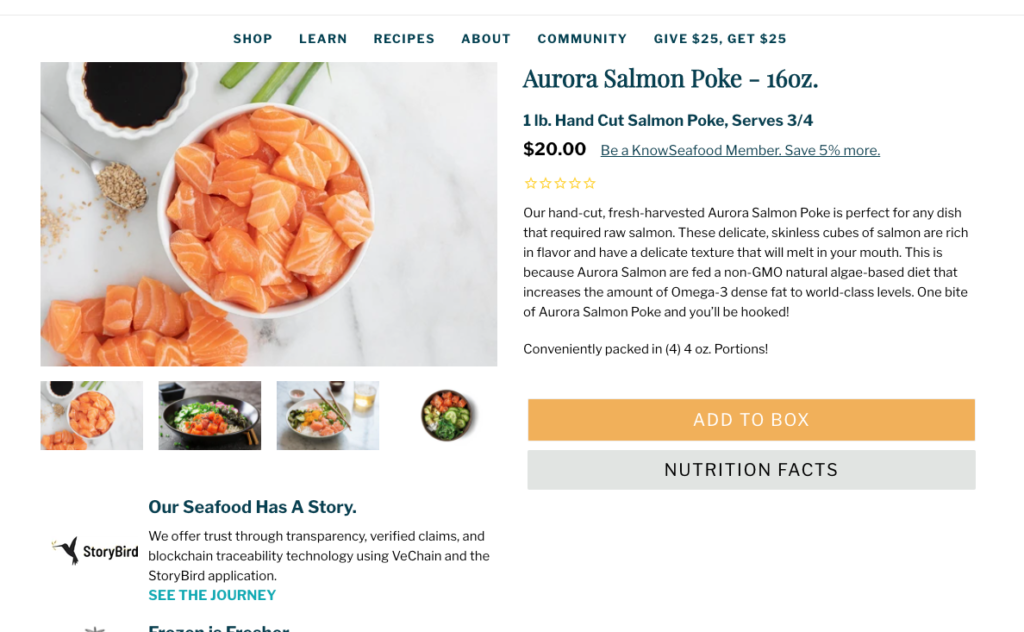
Live Example (KnowSeafood E-Commerce Website)
- KnowSeafood Shopify Integration using VeChain Blockchain Traceability
- Single product page – https://knowseafood.com/collections/lobster-crab/products/maine-lobster-tails
- Product list overview – https://knowseafood.com/
Still have questions? Reach out to our product team via dev@producersmarket.com